
Consumer Technology Guide
USB-C Cables Explained: Choose for Charging, Data, and Displays
The same oval USB-C plug can describe very different cables. Start with the job—charging, data transfer, or a display—then verify the cable and every connected device can do it.
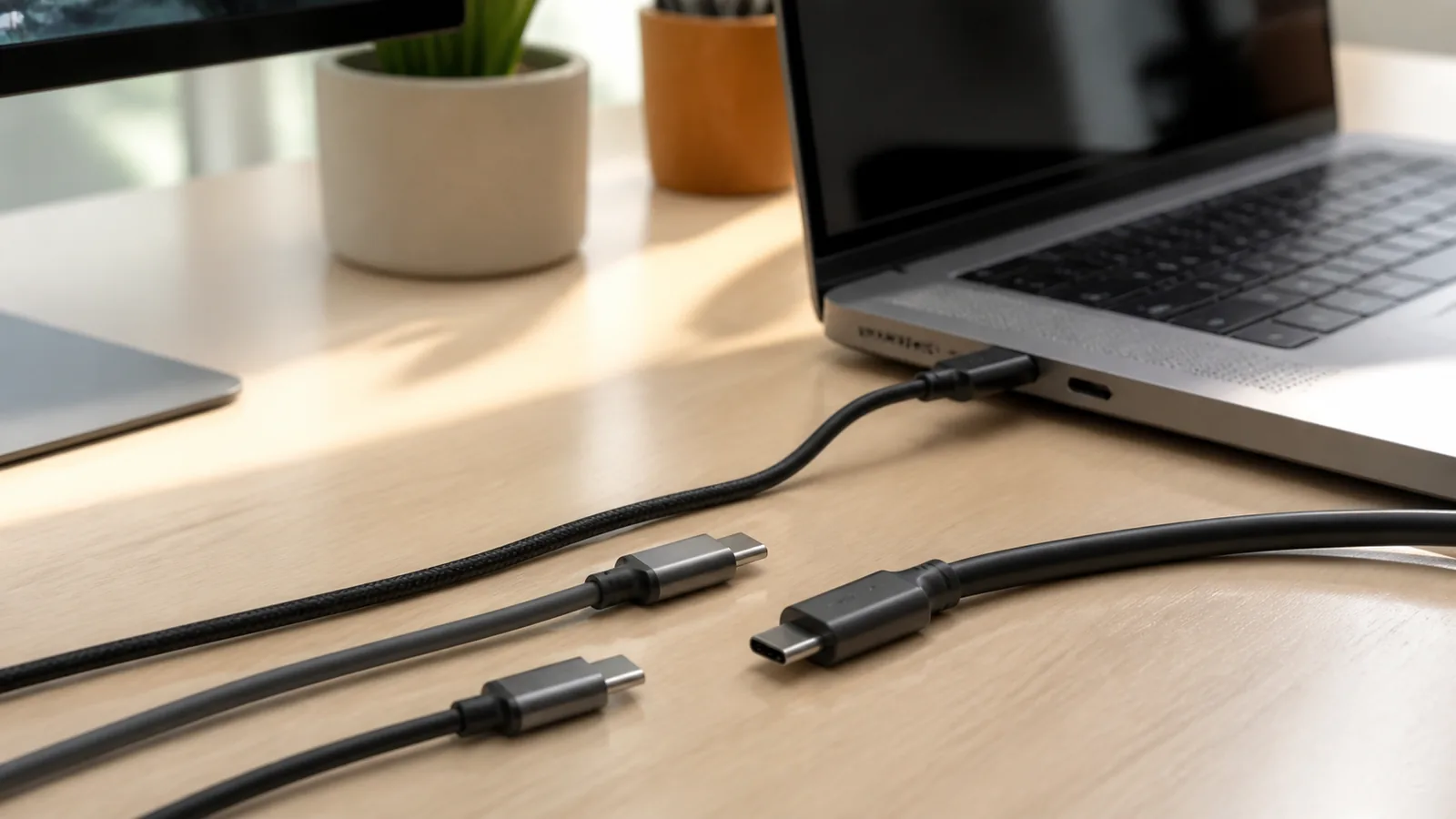
USB-C solved a familiar annoyance: the connector is reversible, so there is no “wrong way up.” It did not make every USB-C cable interchangeable. A cable that comfortably charges a phone may transfer files slowly. A cable that charges a laptop may not carry a display signal. A cable with impressive specifications still cannot add features that the charger, computer, phone, dock, monitor, or port does not support.
The cleanest way to avoid a drawer full of mystery cables is to separate the connector shape from the capability you need. USB-IF, the standards body behind USB, explicitly notes that cables do not all have the same capabilities. Treat the label as a specification to match, not as a promise that every feature is present.
Ask one question before shopping: what job must this cable do?
| Your task | What to verify | Common mistake |
|---|---|---|
| Charge a small device | Connector fit and the device’s supported charging method | Assuming every USB-C charger delivers the same power |
| Charge a laptop | Required wattage from the laptop manual, charger output, and cable power rating | Buying by cable thickness or price alone |
| Move large files | Required data rate and compatible ports at both ends | Confusing the USB-C plug with USB 3 or USB4 data capability |
| Connect a monitor or dock | Device, port, dock, display, and cable video support | Assuming a charging cable automatically supports video |
Charging: read the power requirement, then the cable marking
Start with the device documentation. A laptop, tablet, phone, and dock may each accept different power levels, and the connected device negotiates what it can use. USB Power Delivery is a standard for flexible power delivery; USB-IF documents versions that can define substantially higher power levels, including up to 240W for supported full-featured USB-C hardware. That ceiling is not a recommendation to buy a 240W cable for every device, and it does not mean a particular charger or laptop can use that level.
For a USB-C-to-USB-C cable, look for a clear power capability marking where available. USB-IF says compliant cable categories use 60W or 240W power logos, with data-rate markings required for most non-USB 2.0 USB-C-to-USB-C cables. A marking helps identify the cable’s stated capability; the lower capability among the device, charger, port, and cable still sets the result.
For a replacement charger, verify three things in manufacturer documentation: the device’s required or recommended input, the charger’s output profile, and the cable’s rating. Avoid treating “fast charging” as a universal technical term. It may describe a vendor-specific feature, a USB Power Delivery profile, or a retail claim.
Data: connector shape does not tell you the speed
Some USB-C cables support only USB 2.0 data operation; others support higher USB data rates. If you regularly transfer photos, use an external SSD, or connect a docking station, the data rate matters. Check the exact port specifications on the computer and storage device first. Then select a cable labeled for the required rate. A fast cable connected to a slower port will operate at the slower path; a charging-focused cable may create the same bottleneck.
Use a simple test after setup: transfer a non-sensitive file you can delete, confirm the drive stays connected, and compare observed behavior with the manufacturer’s normal expectations. That is a compatibility check, not a benchmark. Do not judge a cable from one transfer while cloud sync, antivirus scans, or a nearly full external drive are also active.
Displays: every link in the chain must support video
Video over USB-C depends on the source device, its port, the cable, any adapter or dock, and the display. Apple’s device-specific USB-C guidance, for example, tells users to use a USB 3.1-or-higher cable for certain high-resolution display connections. The lesson is broader than one product line: check the exact manual for the exact source and display rather than inferring video capability from the connector alone.
If a monitor does not work, simplify the chain. Test the display with a known-good connection, connect directly before adding a dock, confirm the correct input is selected, and read the source device’s supported display modes. A cable replacement is justified only after these basics. If a dock also provides charging, test charging and video as two separate functions.
A five-minute cable inventory
- Label the cable’s main task: low-power charging, laptop charging, data, display, or dock.
- Keep the original cable with the device when its capability matters and it is in good condition.
- Photograph readable package markings or add a small tag; avoid guessing from color or length.
- Store cables loosely coiled and do not sharply bend the connector ends.
- Retire a cable with exposed conductors, heat damage, a loose connector, or unreliable behavior.
What certification and logos can—and cannot—tell you
USB-IF runs a compliance program and maintains product information for certified products. A valid approved mark or a listing can be a useful signal that a product was tested for the stated category. It is not a guarantee that a cable suits your device, dock, display, or use case. Conversely, a cable without a visible logo should not be treated as automatically unsafe; verify the manufacturer’s specifications, seller identity, warranty, and return terms instead of inventing certainty from packaging.
Buy the smallest credible specification
For a bedside phone cable, a high-speed display-capable cable may add cost without value. For a desk cable that must power a laptop, connect a display, and carry external-drive data through a dock, buying one carefully verified full-featured cable can reduce confusion. The goal is not to maximize a spec sheet. It is to avoid a weak link in the one task you need today.
Bottom line
USB-C describes the connector, not the complete feature set. Choose by task, verify power, data, and video separately, and confirm the limits of every device in the chain. Clear markings and official documentation beat connector shape, marketing phrases, or the assumption that one cable can do everything.