
Consumer Technology Guide
Before You Connect a Smart TV: A Home-Network Privacy Checklist
A smart TV is both a screen and a networked computer. Treat its first setup like adding any other connected device: decide what it can see, what it can send, and how you will maintain it.
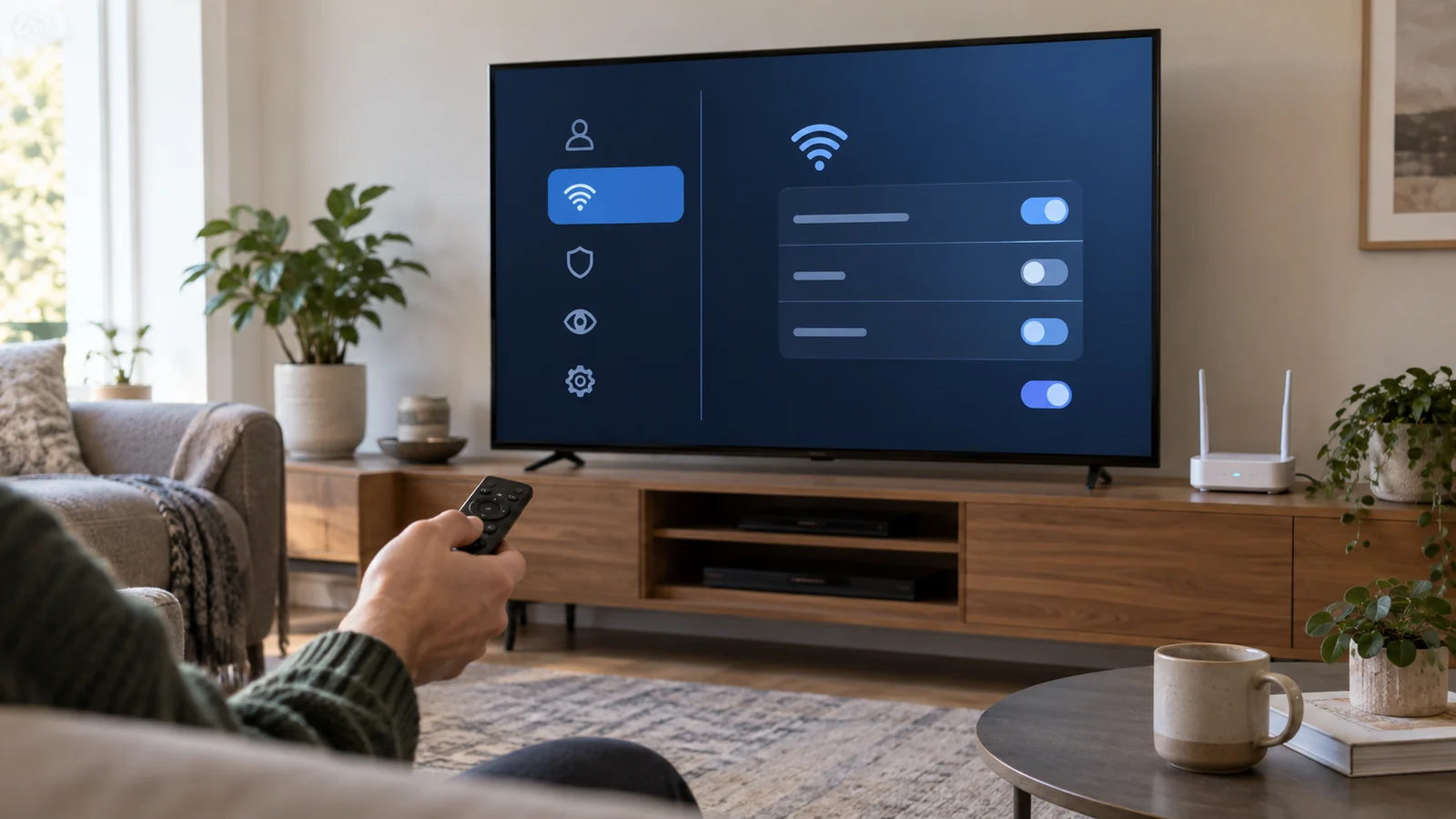
A new television can ask for Wi-Fi, an account, viewing-data permissions, voice features, mobile-app pairing, and access to other devices before you have watched anything. The convenient answer is to accept every default and move on. The more useful answer is to pause long enough to decide which connected features you actually want.
This is a vendor-neutral checklist, not a claim that every television has the same menu or collects the same data. Labels, defaults, and available controls vary by model, region, software version, and account status. Use the manufacturer’s current privacy notice and support pages to interpret the settings on your exact device.
1. Start with the least-connected setup that meets your goal
First ask what the television needs to do. If it will only display video from a game console, disc player, or separate streaming device, the TV itself may not need a network connection. If you want built-in streaming apps, casting, program guides, voice control, or software updates over the internet, it probably does.
That distinction reduces the number of accounts, apps, microphones, advertising identifiers, and background services you need to manage. It is not a command to keep the TV offline forever. It is a scope decision: connect the functions you will use, and leave optional functions disabled until there is a reason to enable them.
2. Secure the router before adding another device
The television joins the same system that connects phones, laptops, printers, and other home devices. The Federal Trade Commission’s home Wi-Fi guidance recommends protecting both the router’s administrative access and the wireless network itself. Before adding the TV, confirm that the router uses a unique administrator password, a current security mode, and current firmware.
Do not confuse the Wi-Fi password with the router administrator password. The first lets a device join the network; the second controls the router’s settings. Both should be unique. If the router still uses a factory login, an obsolete security setting, or software that no longer receives updates, fix that foundation before expanding the network.
A guest or dedicated IoT network can reduce unnecessary visibility between device groups when the router supports real isolation. The name alone proves nothing. Some “guest” modes isolate clients; others only provide a second password. Check the router documentation and confirm that the TV can still reach only the local devices you intentionally use for casting or control.
3. Record the device before it disappears into the network
Write down the model number, serial number, purchase date, support page, and the name that appears in the router’s connected-device list. Then rename the router entry to something recognizable, such as “living-room TV,” if your router allows it. An inventory turns an unfamiliar future network entry into a device you can identify.
The FTC’s connected-device advice recommends knowing what is on the network, changing default credentials, applying updates, and disabling features you do not use. An inventory also makes offboarding possible: when the TV is sold, donated, or retired, you can remove its reservation, account access, and network permissions instead of forgetting it.
4. Update first, then review the defaults again
Connect the TV long enough to check for system updates before signing into multiple services. Updates can close known weaknesses and can also change menus or reset choices. After installing one, restart the TV and revisit the privacy, advertising, voice, casting, and app-permission screens rather than assuming every earlier choice persisted.
Enable automatic security and system updates if the manufacturer provides a clear option and you are comfortable with its behavior. If you prefer manual updates, create a recurring reminder. A manual setting with no maintenance habit is not more controlled; it is simply easier to forget.
5. Separate required data from optional tracking
Look for controls related to viewing information, content recognition, personalized advertising, diagnostic data, recommendations, voice history, location, and cross-device services. Some data may be necessary to deliver a requested feature; other collection may support measurement or personalization. Read each description as a trade: what feature stops if you decline, and do you value it?
Do not assume that turning off personalized ads stops all advertising or all operational data. It may only change how ads are selected. Likewise, disabling one content-recognition setting may not govern a separate streaming app’s account history. Review the TV platform and each signed-in service as separate layers.
6. Give accounts and apps the minimum access they need
Create a television profile only if the desired feature requires it. Use a unique password and multi-factor authentication when the account offers it. Avoid signing the TV into a primary email or cloud account merely for convenience if a narrower TV or streaming account will work.
Install apps one at a time, from the television’s supported store, and remove ones you no longer use. Review microphone, camera, local-network, advertising, and purchase permissions where the platform exposes them. If the TV has a physical camera or microphone switch, learn what it controls; a software mute and a physical disconnect may not be equivalent.
For casting and phone-remote apps, limit pairing to the people and devices that need it. Decline unsolicited pairing prompts. If a guest can cast without authentication, decide whether that convenience is appropriate for the room and network.
7. Verify the result instead of trusting the setup wizard
After setup, open the router’s device list. Confirm that the TV appears under the expected name, that no unexplained device appeared at the same time, and that any guest-network or isolation choice behaves as intended. Then open the TV’s privacy dashboard and take a photo or written note of the choices you made. That record helps after a reset or major update.
NIST’s consumer IoT baseline frames useful product capabilities around configuration, data protection, access to interfaces, software updates, and awareness of cybersecurity state. A consumer does not need to audit a television like a laboratory. The practical translation is to verify that you can configure it, restrict access, receive updates, and tell when its security state needs attention.
8. Plan maintenance and the eventual factory reset
Review the connected-device inventory and TV apps every few months. Remove unused apps, check for updates, and confirm that the manufacturer still supports the model. If support ends, reassess whether the TV should remain online or whether a maintained external streaming device can provide the connected features instead.
Before selling, donating, returning, or recycling the television, sign out of streaming services, remove payment methods, unlink voice assistants and mobile apps, and perform the manufacturer’s factory-reset procedure. Then remove the TV from online account dashboards and the router’s known-device list. A reset should be verified by reaching the initial setup screen without your profile or viewing history.
A ten-minute go-or-wait decision
Connect now when the router is maintained, the television is receiving updates, you can identify the device on the network, and you have deliberately chosen the account, tracking, voice, casting, and app permissions you need.
Wait when the router still has default credentials, the TV cannot receive updates, a required privacy notice is unavailable, the network-isolation behavior is unclear, or setup demands broader account access than the desired feature justifies.
If weak coverage is driving setup problems, use our mesh Wi-Fi, extender, or router decision guide before buying another device. For a broader device-intake routine, adapt the account and update steps in our new laptop setup checklist.
Bottom line
Smart-TV privacy is not one hidden switch. It is a chain of decisions across the router, television platform, apps, accounts, local-device access, updates, and end-of-ownership reset. Start with the smallest connected feature set, record what you added, and revisit the choices after software changes. That is more reliable than accepting every default or trying to make a networked television invisible.